
The Shared Gmail Honeymoon and Where It Ends
Almost every company on the internet begins its customer service journey the exact same way: someone registers support@company.com on Google Workspace, creates a Google Group or shares the mailbox credentials, and invites the founding team to monitor it.
In the earliest days—when you receive three emails a week—a shared Gmail inbox feels delightfully simple. There is no software to install, no new dashboard to learn, and everyone already knows how to use Gmail.
Then your business starts to grow. You hit 20 emails a day, then 50, then 100. Suddenly, the beloved shared Gmail inbox transforms into a chaotic operational hazard.
The Four Classic Failure Modes of Shared Mailboxes
If your team is managing support out of a shared Gmail account, you will recognize these four daily frustrations:
1. Collision Accidents (The Double Reply)
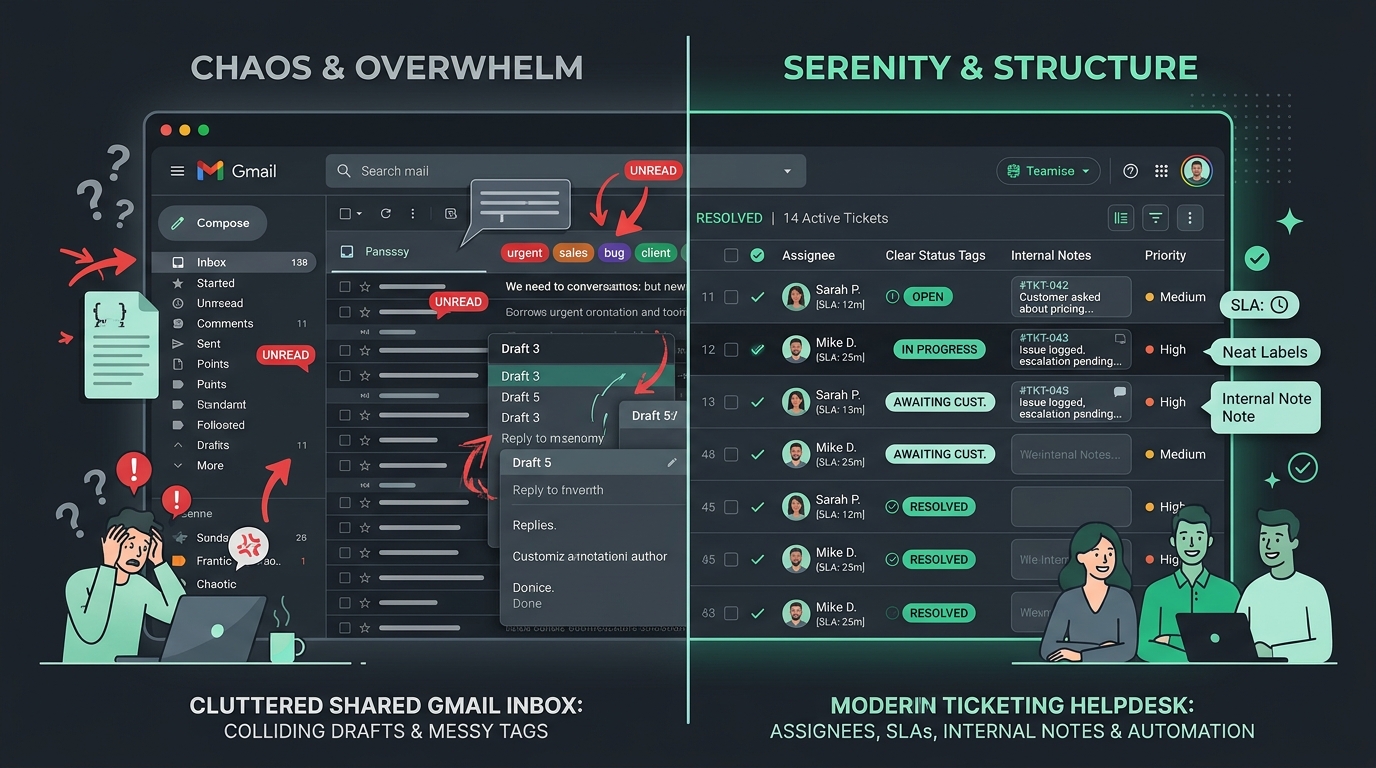
Two teammates open the same customer email simultaneously. Both spend ten minutes drafting a response. Both click "Send" within thirty seconds of each other. The customer receives two different replies from two different people—often giving contradictory advice or different refund amounts.
2. The "Mark as Read" Black Hole
In Gmail, if Teammate A opens an email on their laptop to read it, the message is marked as "Read" for everyone on the team. Teammate B assumes someone is already handling it and scrolls past. The email is never answered, and an angry customer posts on social media three days later.
3. The Draft Confusion
Teammate A begins drafting a technical reply, gets called into a meeting, and leaves the draft unfinished. Teammate B opens the thread, sees an incomplete draft, doesn't know whether to finish it, delete it, or leave it alone, and the ticket stalls.
4. Zero Internal Collaboration
When you need to ask a colleague for advice on a customer ticket in Gmail, what do you do? You take a screenshot, paste it into Slack or Microsoft Teams, discuss it there, and then copy the answer back into Gmail. Your customer history is fractured across two disconnected applications.
The Shared Password Security Hazard
Sharing a single password for support@company.com bypasses modern security best practices. You have no audit logs showing who sent which email, and managing Google 2-Factor Authentication (2FA) codes across five team members is a constant nightmare.
What a Proper Helpdesk Adds to Your Email Workflow
Moving from a shared Gmail inbox to a dedicated helpdesk like HDdesk doesn't mean changing how your customers reach you. Customers continue sending emails to your regular support address. Behind the scenes, however, your team gains essential operational primitives:
| Workflow Feature | Shared Gmail Inbox | Dedicated Email Helpdesk (HDdesk) |
|---|---|---|
| Ownership | Unclear; colored labels only | Explicit Assignee per ticket |
| Status Tracking | Read / Unread / Starred | Open, Pending Customer, Resolved |
| Collision Prevention | None (accidental double replies) | Real-time presence and draft locking |
| Internal Notes | Requires external Slack threads | Private yellow notes on the conversation |
| Response Metrics | Zero visibility | SLA timers, first-reply & resolution reports |
Upgrading Without Changing Your Email Provider
A common misconception among founders is that moving to a helpdesk requires abandoning Google Workspace or migrating your MX records. This is not true.
Your email hosting remains 100% on Google Workspace. HDdesk connects directly to your existing Gmail inboxes via OAuth or simple email forwarding. Your SPF, DKIM, and MX records stay exactly where they are. Inbound customer emails flow into HDdesk, and outbound agent replies are dispatched securely through your verified Google Workspace servers.
Step-by-Step Transition Checklist
To upgrade your shared Gmail inbox into a proper helpdesk in under an hour:
- Connect your Gmail inbox: Sign up for HDdesk and link your
support@company.comGoogle account via one-click OAuth or email forwarding. - Invite your teammates: Send invites to your co-founders, support reps, and developers. Because HDdesk provides unlimited agent seats on all plans, everyone gets their own secure login.
- Configure your brand signature: Paste your company's standard email signature and logo.
- Set up basic rules: Create automated rules to route billing queries, bug reports, and general feedback.
- Test with an external email: Send a test email from your personal account, verify that it appears in your helpdesk queue, assign it to a teammate, add an internal note, and reply.
Say goodbye to collision accidents, dropped emails, and screenshotting threads into Slack. Upgrading to a proper email helpdesk gives your team the calm, organized infrastructure needed to deliver five-star support as you scale.
Turn your Gmail into a calm, organized helpdesk
HDdesk connects to your existing Google Workspace email in minutes. Enjoy collision detection, explicit ticket ownership, and unlimited teammates on every plan.